
Tenant login
Login to any available tenant
Tenant user login to the Planning Space web interface is performed using a URL containing the FQDN of the IPS Server machine:
'https://{server FQDN}'
or in the case of an IPS Server cluster, users should use the FQDN of the load balancer, or a DNS alias if that is configured.
Administrators can control connection to the tenant interface as would be done for any web site, by configuration of the firewall at the IPS Server machine, load balancer and/or external firewall.
A login screen will appear like this:
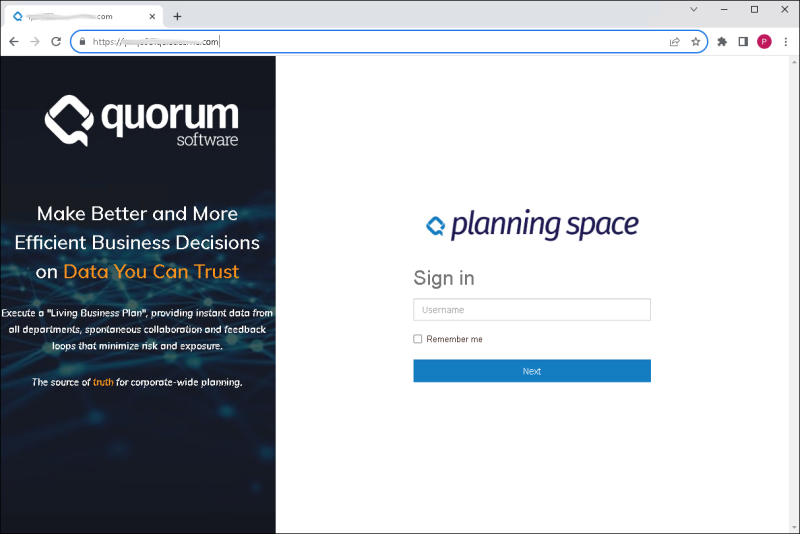
(Note: The information banner on the left-hand side will not be displayed in case the application window is less than a certain width.)
The login steps depend on the user account type (see Tenant users and administrators), and the IPS server authentication configuration.
The Remember me option check box can be used to store the last-used Username for the next login.
For a 'Local' user account (including the default 'Administrator'), the Username and Password fields need to be filled in, then click the Sign in button. Similarly do this for 'Windows Active Directory' accounts: in the Username field you need to type in 'DOMAIN\username' ('username' only will not work). If the IPS Server is running more than one tenant the next screen will require the tenant name to be entered, or if the Show tenants on root login page server option is enabled (see below), then a selection list of the tenant names will be displayed. Note that the IPS Server actively checks which tenants contain a Login ID that matches the input 'Username', and if there is only one matching tenant then the selection step is omitted.
'SAML2' user accounts have a Windows UPN identifier as the Login ID (i.e. of the form 'first.lastname@domain.mycompany.com'), and this is typed into the Username field, and the Password field is left blank. The next step (if there are multiple tenants) will be a tenant selection screen, and then the the browser will be directed to an ADFS Identity Provider server; depending on the configuration, it may be required to select one of several federated accounts, and/or you may be requested to enter a federated password.
'Show tenants on root login page' setting
The names of the tenants in an IPS Server are not revealed by default, and users will need to be provided with this information.
However, a global IPS Server setting is available in the Tenants screen of IPS Manager. Check the setting box Show tenants on root login page and click the Save all changes button to change the setting.
When this setting is enabled, the tenant selection screen during login will show a menu with the tenant names for which the user account is registered. For example:

Login to a specific tenant
To login to a specific tenant, the tenant name can be added to the URL for the IPS Server machine or the load balancer:
'https://{server FQDN}/{TENANTNAME}'
In this case the tenant selection screen will not appear.
Automatic provisioning of SAML2 tenant user accounts
Automatic provisioning of SAML2 tenant user accounts is an optional configuration, based on the Identity Provider. This means that a new tenant user account can be created automatically when a user logs in to a Planning Space tenant for the first time, using an account that is defined (and enabled to access Planning Space) by the Identity Provider's domain authentication services. For configuration details see Automatic provisioning of tenant user accounts.